How to search for data in PrIMe Warehouse
To search for data in the PrIMe Warehouse, from the reactionlab main menu select "PrIMe Warehouse", then choose "Browse/Search"

When the Search window opens, select the data collection to search through.

Once the collection is selected, the field "where" gets the names of the "searchable" fields in those data records. In this example,
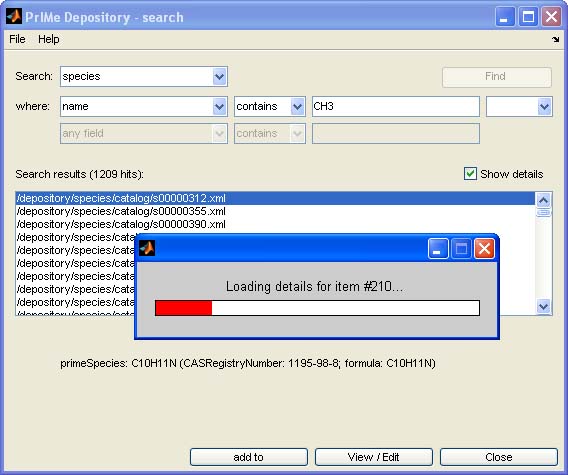
we search for all the species whose "name" contains "CH3". To do so, first select field "name":

... and then type "CH3" as the search target. Click  button. Depending on how many records were found
(well over 1,000 in this case), it may take several seconds for the list of results to be displayed.
button. Depending on how many records were found
(well over 1,000 in this case), it may take several seconds for the list of results to be displayed.

The list shows the file names which contain the data record that satisfied your search criterion. Below the list the details for the
highlighted record are displayed. To have details shown in the list instead of filenames, check off the "Show details:" checkbox.
Information on each of the records in the list will be automatically retrieved from the PrIMe Warehouse.
To narrow the search to species that have "CH3" in the name and, for example, contain bromine, we can expand the search criterion by
selecting a condition connector ("and" in this case), and "composition_element_symbol contains Br" as the second condition. Hit "Find".
The list of records is now, as expected, much shorter:

Tips and tricks
- The PrIMe search is not case sensitive. Searching for CH3 will return the same records as searching for ch3.
- When typing what to search for, enter only a single word.
- If searching for a phrase, for example, articles containing laminar flame in title, enclose "laminar flame" in quotes.

To get also articles where words laminar and flame are not together, as, for example, in laminar premixed flame,
search instead for laminar and flame:

- To narrow down the list of search hits, two fields can be searched simultaneously. The result of the search will be union (or, or not),
intersection (and) or complement (and not) of the two individual criteria. To find, for example, all atricles by Frenklach,
where soot is mentioned in the title:

- Species collection can be searched by composition. To find all species containing four carbon atoms and two oxygen atoms, search for
composition containing C_4 and O_3.

- To find reactions involving particular species, you may search by either reactant's preferred key or by its prime ID. While
search by preferred key might seem "nicer", the search by primeID can be more effective. For example, authors may enter formyl
as either CHO or HCO. Search for reactions involving reactant with prime ID s00009325 would find the reaction involving formul
regardles of the reactants preferred key.